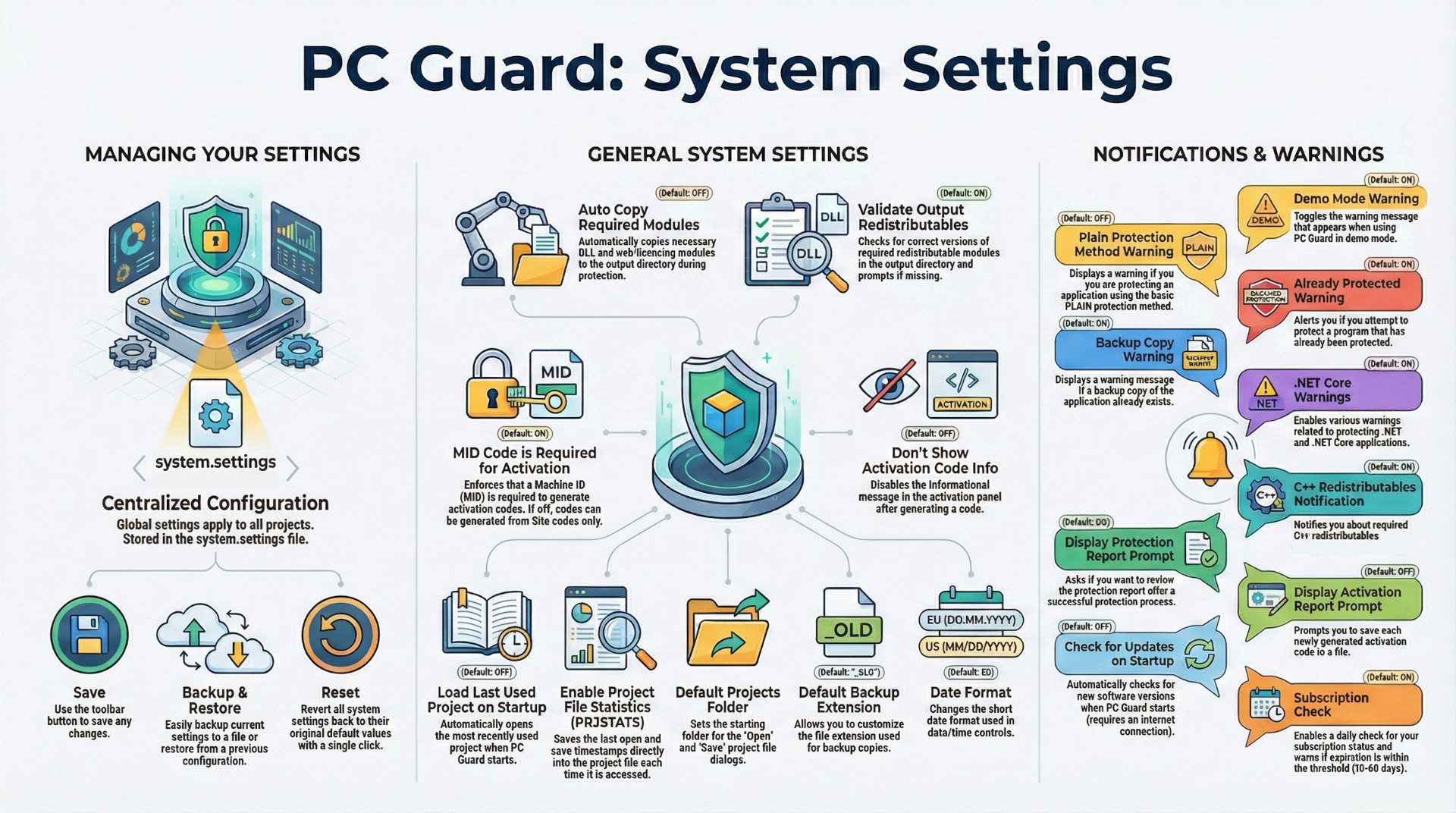
This article provides a comprehensive analysis of the global System Settings for the PC Guard software protection suite. These settings govern the behavior of the application for all projects on the host computer and are categorized into two primary functions: General Settings, which control core operational workflows, and Notifications Settings, which manage user-facing warnings and prompts. The settings are stored locally in a system.settings file located in the user's AppData folder.
Key takeaways from the analysis are as follows:
- Emphasis on Manual Control and Safety: The default configuration prioritizes explicit user action and system safety. Features that automate processes or require internet connectivity, such as automatically copying modules, loading the last project, and checking for updates, are disabled by default. Conversely, most validation and warning systems—like checking for correct redistributables, detecting already-protected applications, and warning of internal overlays—are enabled by default to prevent common errors.
- Workflow Customization: The settings provide significant flexibility to tailor the development and protection workflow. Users can automate dependency management, customize backup file extensions, set default project folders, and alter date formats to match regional standards (EU vs. US).
- Activation Process Configuration: A critical setting, enabled by default, requires a Machine ID (MID) code for generating activation codes, enforcing a stricter machine-specific licensing model. This can be disabled to allow for activation based solely on Site codes if a more flexible model is desired.
- Robust Notification System: The software includes a highly granular notification system, allowing users to enable or disable specific warnings related to protection methods (e.g., PLAIN protection), application types (non-standard), licensing dependencies (C++ redistributables), and subscription status.
Detailed Analysis of System Settings
The System Settings for PC Guard are global configurations that apply to all projects managed on a single installation. These settings can be managed via toolbar buttons to Save, Backup, Restore from a backup, or Reset to default values. All settings are stored in the system.settings file, located at <system drive>:\Users\<username>\AppData\Roaming\Sofpro\PC Guard for VER.
General System Settings
These settings configure the core operational behavior of the PC Guard application, affecting file handling, activation processes, and project management.
| Setting | Description | Default Status |
| Auto copy required modules | When enabled, automatically copies the interface DLL and web licensing modules to the output directory during the protection process if they are required by the application. | OFF |
| Validate output redistributables | Validates required redistributable modules in the output directory. It checks for the presence of the module and verifies that the version is correct, prompting the user to copy the correct version if a mismatch is found. | ON |
| MID code is required for activation | Mandates that a Machine ID (MID) code must be provided to generate activation codes in the activation panel. If disabled, activation codes can be generated using only Site codes. | ON |
| Don't show activation code info | Disables the informational message that appears in the activation panel after generating an activation code. | OFF |
| Load last used project on startup | If enabled, the most recently used project file will be loaded automatically when the PC Guard application starts. | OFF |
| Enable project file statistics (PRJSTATS) | Toggles the saving of metadata (last open and save times) to the PRJSTATS section within the project file upon each load or save operation. | Not Specified |
| Default projects folder | Defines the starting directory that will be opened by default for file open and save dialogs related to project files. | Not Specified |
| Default backup extension | Allows customization of the default file extension used when creating backup copies of files. The default value is _OLD. | Not Specified |
| Date format | Sets the short date format used in date/time picker controls throughout the application. Options are EU - DD.MM.YYYY (default) or US - MM/DD/YYYY. | EU |
Notifications System Settings
This category contains settings that control the various warnings, prompts, and informational messages displayed to the user during different operations. The default configuration enables most warnings to ensure user awareness of potential issues.
| Setting | Description | Default Status |
| Demo mode warning | Toggles the warning message related to operating in demo mode. | ON |
| Plain protection method warning | If enabled, displays a specific warning message when an application is protected using the PLAIN protection method. | OFF |
| Already protected warning | Displays a warning if an attempt is made to protect an application that has already been protected. | ON |
| Internal overlay warning | Triggers a warning message if an internal overlay is detected within the application being protected. | ON |
| Backup copy warning | Displays a warning message if an existing backup copy is detected. | ON |
| .NET Core warnings | Enables warnings specifically related to .NET and .NET Core applications. | ON |
| Non-standard application notification | Displays a notification message box if the application being protected is detected as non-standard. | ON |
| C++ redistributables notification | Enables a notification regarding required C++ redistributable files for applications that use the ACEN web licensing feature. | ON |
| Display protection report prompt | If enabled, prompts the user to review the protection report after a protection process completes successfully. | ON |
| Display activation report prompt | If enabled, prompts the user to save each generated activation code to a file. | OFF |
| Check for updates on startup | Enables an automatic check for software updates upon application startup. Requires an internet connection. This check is ignored if a project file is processed from the command line. | OFF |
| Subscription check | Enables a daily check for the expiration of the software subscription. A notification is displayed on startup if the expiration date is within a defined threshold (10-60 days). The default threshold is 30 days. | ON |