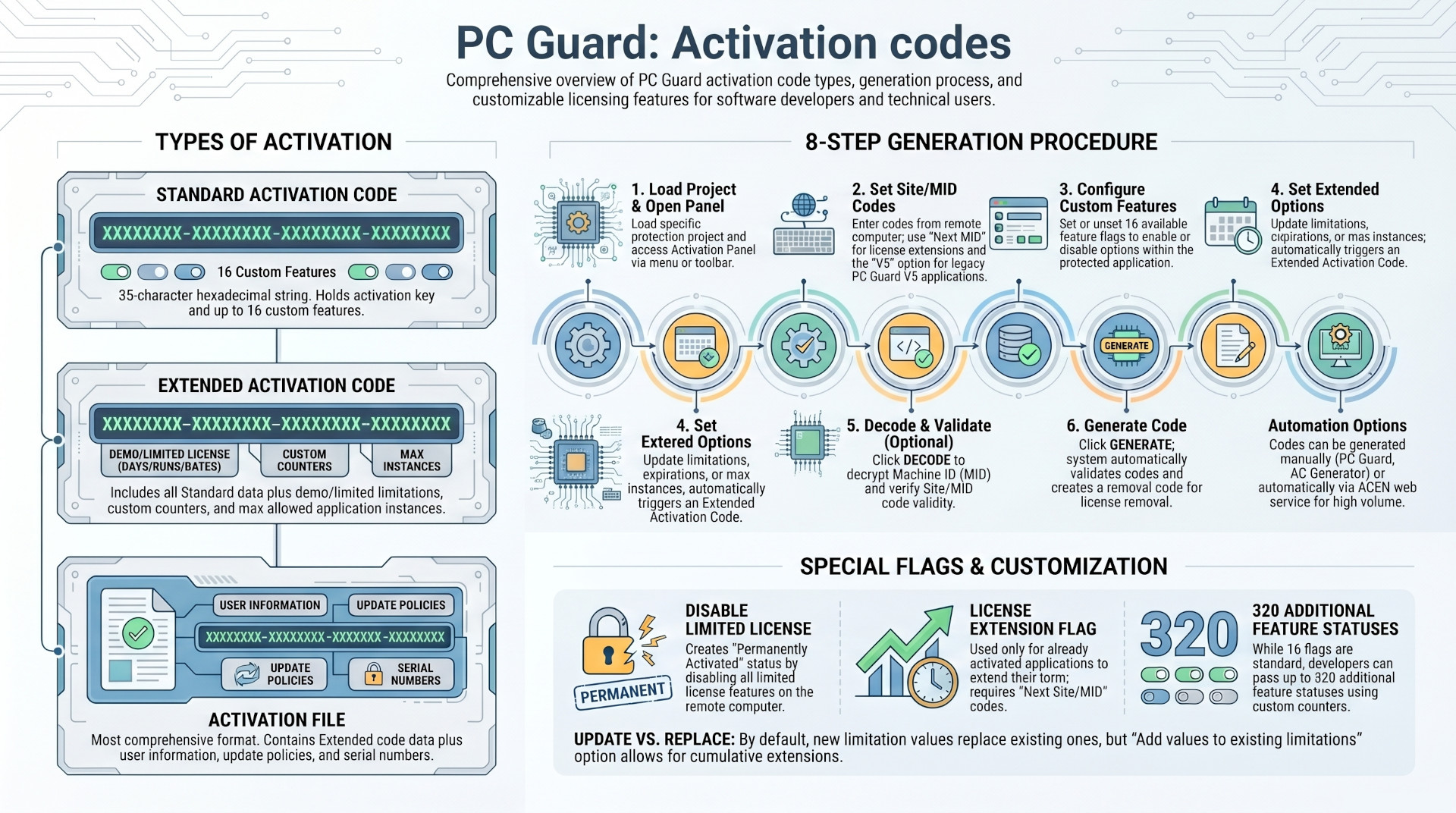
The SOFPRO licensing ecosystem utilizes activation codes to regulate software access based on project settings and hardware-specific identifiers (Site/MID codes). The system distinguishes between Standard Activation Codes, Extended Activation Codes, and Activation Files, each offering increasing levels of complexity and control.
Standard codes provide basic activation and custom feature toggles, while extended formats allow for the granular management of demo limitations, license durations, and application instance counts. Administrative control is centralized through the Activation Panel, which facilitates code generation, Machine ID (MID) decoding, and the maintenance of detailed activation reports. Furthermore, the system supports up to 16 custom feature flags—expandable to 320 via custom counters—enabling developers to toggle specific application functionalities remotely.
1. Hierarchy of Activation Mechanisms
The SOFPRO framework provides three primary vehicles for licensing information, categorized by their data capacity and functional scope.
Comparison of Activation Types
| Feature | Standard Activation Code | Extended Activation Code | Activation File |
| Length/Structure | 35 characters (Hexadecimal) | Longer than Standard | File Format |
| Activation Key | Yes | Yes | Yes |
| Custom Features | Yes | Yes | Yes |
| Demo/License Limits | No | Yes | Yes |
| Custom Counters | No | Yes | Yes |
| Max App Instances | No | Yes | Yes |
| User Information | No | No | Yes |
| Updates Policy | No | No | Yes |
| Serial Numbers | No | No | Yes |
Structural Requirements
- Standard Codes: Use a 35-character hexadecimal format (0-9 and A-F) structured as:
XXXXXXXX-XXXXXXXX-XXXXXXXX-XXXXXXXX. - Hardware Binding: All codes are generated based on project settings combined with Site/MID codes from the end-user's remote computer.
2. Generation and Administration Workflow
Activation codes are generated through three primary channels: the PC Guard Activation Panel, the AC Generator, or the Activation Center (ACEN). While manual generation is available for administrators and clients, ACEN supports automated generation via web service methods.
The Activation Panel Process
The primary interface for managing licenses is the Activation Panel, accessible via the PC Guard main menu or toolbar. The generation procedure follows a structured eight-step workflow:
- Project Loading: Load the specific project used for software protection.
- Panel Access: Open the activation interface.
- Site/MID Configuration: Input codes from the remote computer. Administrators must use "next Site/MID" codes specifically for license extensions. A V5 option is available for applications protected with legacy PC Guard versions.
- Custom Feature Selection: Define optional functional flags.
- Extended Options Configuration: (Optional) If enabled, the system automatically generates an Extended Activation Code. This includes:
- Demo/License Limitations: Updating days, runs, or fixed expiration dates.
- Counter Management: Adding values to existing counters or replacing them entirely.
- Instance Control: Setting the maximum allowed application instances.
- MID Decoding: Use the DECODE button to validate Site/MID codes and view locking parameters.
- Code Generation: Generate the code; the system also creates a removal code for license revocation.
- Reporting: Save the generation data to an Activation Report (a text file). These reports are critical for security and should be backed up alongside project files.
3. Custom Features and Functional Flags
Developers can embed specific operational instructions within activation codes through custom features.
Feature Flag Capacity
- Standard Flags: 16 custom features can be toggled to enable or disable specific options within the protected application.
- Extended Capacity: If more than 16 features are required, up to 320 additional feature statuses can be managed through custom counters.
- Implementation: The protected application retrieves these statuses using the
GetInterfaceData()function or by checking environment variables.
Special Purpose Flags
Certain flags carry significant weight regarding the license state:
- Disable Limited License Flag: Permanently activates the application on the remote computer, overriding any previous limitations.
- Extend Evaluation Period Flag: Specifically designed to prolong the software's trial phase.
- License Extension Flag: Used exclusively for activated applications. It requires the "next Site/MID" code and will be reported as invalid if applied to expired or locked software.
4. Administrative Security and Tools
The SOFPRO system emphasizes the security and integrity of the licensing process through several built-in utilities:
- Activation Reports: Detailed text files that log all relevant information regarding generated codes and files. They serve as a vital audit trail.
- Decoding and Validation: The Activation Panel includes tools to check the validity of Site/MID codes and decrypt Machine IDs to ensure license requests are legitimate.
- Removal Codes: Automatically generated alongside activation codes, ensuring that licenses can be formally removed from a system when necessary.
- Customization: Administrators can define custom descriptions for each of the 16 feature flags within the Customization settings, ensuring clarity during the code generation process.