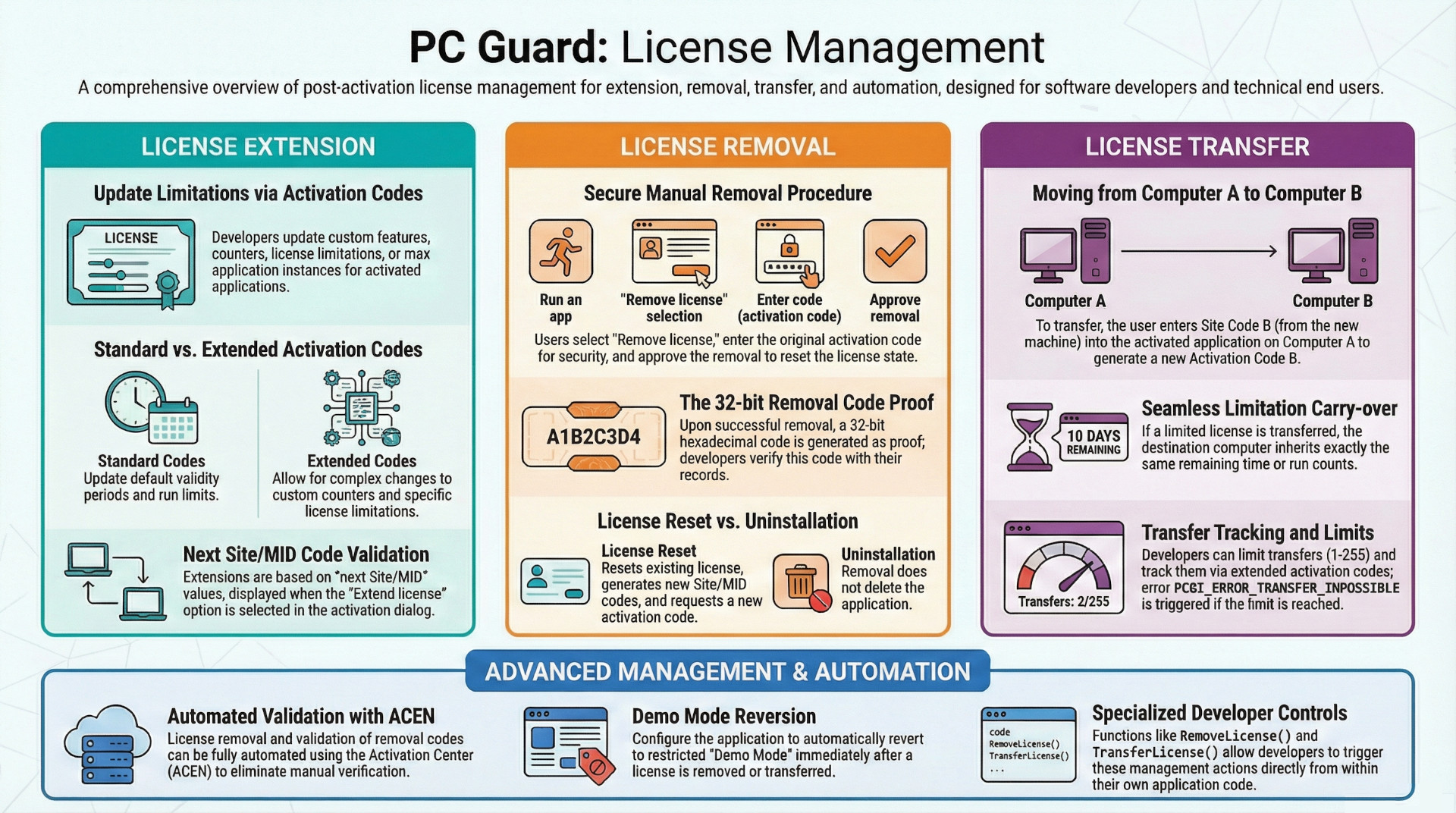
PC Guard software protection system provides a comprehensive framework for managing activated applications through three primary mechanisms: license extension, license removal, and license transfer. These features allow developers to remotely modify license parameters, securely decommission licenses on specific machines, and permit end users to migrate their software to new hardware while maintaining existing license limitations. Key security protocols, such as removal code generation and mandatory activation code entry, ensure that license modifications are authorized and verifiable. Management can be handled manually through an activation dialog, programmatically via an advanced protection interface, or automatically through the Activation Center (ACEN).
Core License Management Functions
The system's remote protection settings define how an application behaves after its initial activation. Developers can toggle specific features and set default behaviors to balance security with user convenience.
1. License Extension
The license extension feature enables the secure update of limitations, custom features, or custom counters for applications that are already activated. This is facilitated through license extension activation codes based on the "next Site/MID" code values.
- Standard Activation Codes: These update only the license validity period and the number of runs to the default values defined in the original project settings.
- Extended Activation Codes: These offer greater functionality, allowing the modification of custom counters, custom features, and the maximum number of application instances.
- User Interaction: By default, the activation dialog appears on every startup if extension is enabled. This can be suppressed using the "Special key pop-up" option, requiring the user to use a key combination to invoke the dialog.
2. License Removal
License removal allows for the secure deactivation of a license on a remote computer. It is important to note that this process does not uninstall or delete the application; it merely resets the license and generates new Site/MID codes.
- Removal Code: Upon successful removal, a 32-bit hexadecimal "removal code" is generated. This serves as definitive proof that the license has been deactivated.
- Validation: The end user provides this code to the software vendor. If the code matches the removal code generated during the initial activation code creation, the license is considered officially removed.
- Security Measures: To prevent unauthorized removal, the system typically requires the original activation code. This behavior can be modified in the activation dialog settings.
- Demo Mode Restoration: If "Re-enable demo mode after license removal" is active, the application reverts to its default demo limitations rather than being completely locked.
3. License Transfer
This feature facilitates moving a license from one computer (Source A) to another (Target B). Like removal, transferring a license resets the license on the source computer but does not uninstall the software.
- Transfer Workflow:
- The user runs the application on Computer A and selects "Transfer License."
- The user enters the original activation code for Computer A and the new Site Code from Computer B.
- The system generates a new activation code for Computer B.
- Persistence of Limitations: If the "Limited License" feature is active, the current state (e.g., remaining days or remaining runs) is preserved and transferred to the new machine.
- Transfer Limits: Developers can restrict the number of transfers allowed (between 1 and 255). Tracking is handled via extended activation codes and resets if a license is removed or manually reset.
Configuration Settings and Default Behaviors
The following table outlines the configuration options available within the license management settings and their default states:
| Option | Default Status | Description |
| License extension enabled | ON | Allows updating of license limitations for activated apps. |
| License removal enabled | ON | Allows the user to deactivate a license. |
| License transfer enabled | OFF | Allows migration of a license to a new computer. |
| Re-enable demo mode | OFF | Restores demo limitations after removal or transfer. |
| Disable removal for limited license | OFF | Restricts removal to permanently activated licenses only. |
| Disable transfer for limited license | OFF | Restricts transfer to permanently activated licenses only. |
| Limit number of transfers | OFF | Restricts how many times a user can move the license. |
| Reset number of transfers | OFF | Resets the transfer counter (requires an Update ID increase). |
Implementation and Automation Methods
The SOFPRO system provides multiple avenues for implementing these management features, ranging from manual user-driven processes to fully automated back-end systems.
Manual and Command Line Interfaces
- Activation Dialog: The primary interface for end users to select "Remove license," "Transfer license," or "Extend license."
- Command Line: Licenses can be removed via the command line using the
-PCG_CL_REMOVE_LICENSEoption. - Advanced Protection Interface: Developers can trigger functions directly from their own code:
RemoveLicense(): Triggers the removal process.TransferLicense(): Triggers the transfer process; returnsPCGI_ERROR_TRANSFER_IMPOSSIBLEif transfer limits are reached.
Automation via ACEN
The Activation Center (ACEN) allows for the automation of removal code validation. This removes the need for manual comparison of codes by the software vendor, streamlining the license management lifecycle for both the developer and the end user.
User experience tip
To improve user experience and prevent the activation dialog from appearing on every application launch, the "Special key pop-up enabled" option is recommended. This allows users to access license management features only when specifically needed by toggling a key combination before startup.