This step-by-step guide demonstrates how to configure and deploy the Floating (Concurrent) Licensing Model using Activation Center (ACEN) and PC Guard. Floating licensing works seamlessly with both Standard and Web licensing models via the Web API interface (requires PC Guard 06.00.0971+ and ACEN 06.05.0400+).
Example Scenario: 10 Workstations, 3 Concurrent Users
Suppose your customer purchases a floating license allowing up to 10 workstation installations (Granted Licenses = 10), but only 3 employees are permitted to run the application simultaneously (Floating Seats = 3). When a 4th user tries to launch the software while 3 instances are already active, ACEN blocks startup with an informative message until one of the active users closes the application.
Step 1 Configure Product & Order Settings in ACEN
First, enable the Web API interface and configure your floating seat limits and session timeouts in Activation Center:
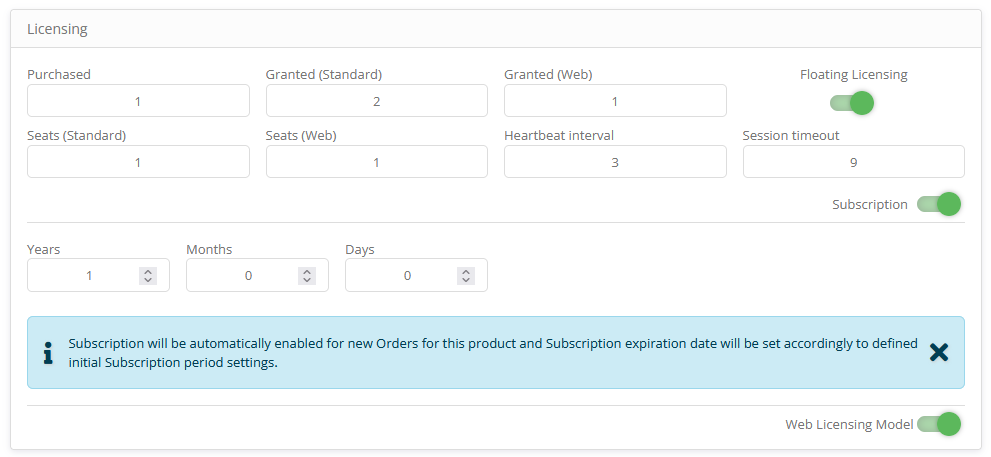

Option A: Standard Licensing Model
- Open your Product in ACEN and enable WebApi (and optionally Encryption) under Web API settings.
- Under Licensing settings, enable Floating Licensing and set default values for Seats (Standard), Heartbeat interval (e.g.,
3min), and Session timeout (e.g.,9min). - Create or open a client Order, set Granted (e.g.,
10) and Seats (e.g.,3), and verify that Floating Licensing is enabled.
Option B: Web Licensing Model
- Open your Product in ACEN and enable WebApi under Web API settings.
- Under Licensing settings, enable Web Licensing Model and Floating Licensing.
- Set Granted (Web) (e.g.,
10), Seats (Web) (e.g.,3), Heartbeat interval (e.g.,3min), and Session timeout (e.g.,9min). Each Serial Number will enforce its own pool of 3 concurrent seats.
Step 2 Sync Product Settings & Protect in PC Guard
- Open your project in PC Guard (version 06.00.0971 or later) and navigate to Remote protection → ACEN.
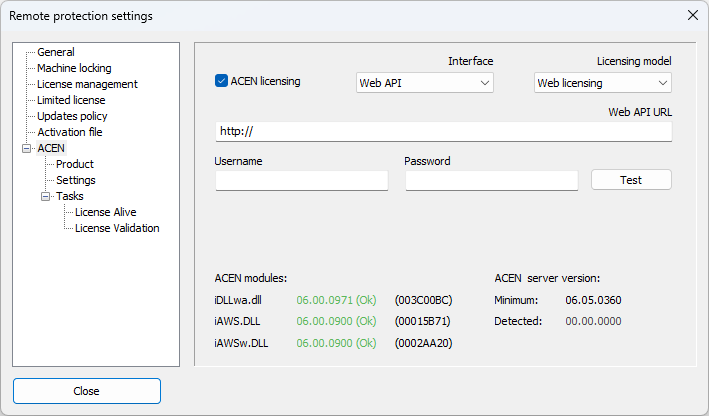
- Select Web API as the interface, go to Product tab, choose your Product, and click Apply to project so PC Guard automatically verifies and synchronizes all Product settings with your project.

- (Optional) You can review or adjust the synchronized task options under Tasks → License alive report if needed.
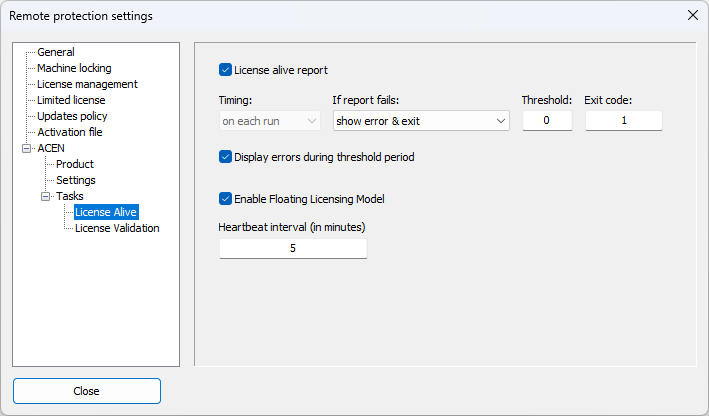
- Protect your application. PC Guard enforces the on each run schedule for both License alive report and License validation tasks during protection.
Step 3 Distribute Updated Interface DLL Modules
Ensure that you package and redistribute the latest Web API interface module (iDLLwa.dll for 32-bit or iDLL64wa.dll for 64-bit, version 06.00.0971+) alongside your protected executable.
Step 4 Optional: Application-Level Best Practices
- Non-Standard Exit Handling (MFC / VB6): If your application does not terminate via standard Windows
ExitProcess(), call the FreeAppInstance() protection interface function during shutdown so the occupied seat is released immediately.
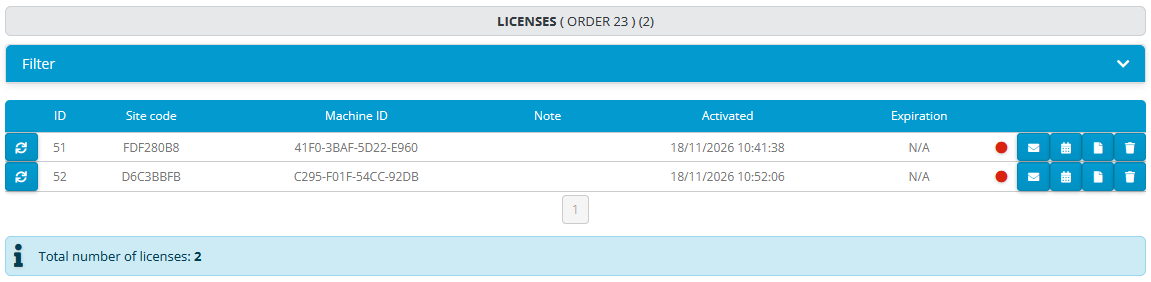
Runtime Lifecycle Overview
1. Activation / Startup: ACEN verifies if a floating seat is available. If all seats are occupied, startup is blocked without removing the local license.
2. Active Session: The application sends periodic Running heartbeats to keep its seat reserved.
3. Shutdown / Crash Recovery: Closing the app immediately frees the seat (Closed). If a crash or power loss occurs, ACEN automatically frees the seat once the Session timeout expires.