This is just a simple, introductory example intended for first time users of PC Guard DEMO version.
There are so many different protection strategies you can easily implement with PC Guard software protection system. This is just a matter of setting appropriate options in project settings and clicking on Protect button!
We'll be using default, remote protection method in this example.
Stage 1: Protection
Let's say we want to protect our test application (test.exe) located in "c:\test".
Launch PC Guard.
Basic application info settings open by default.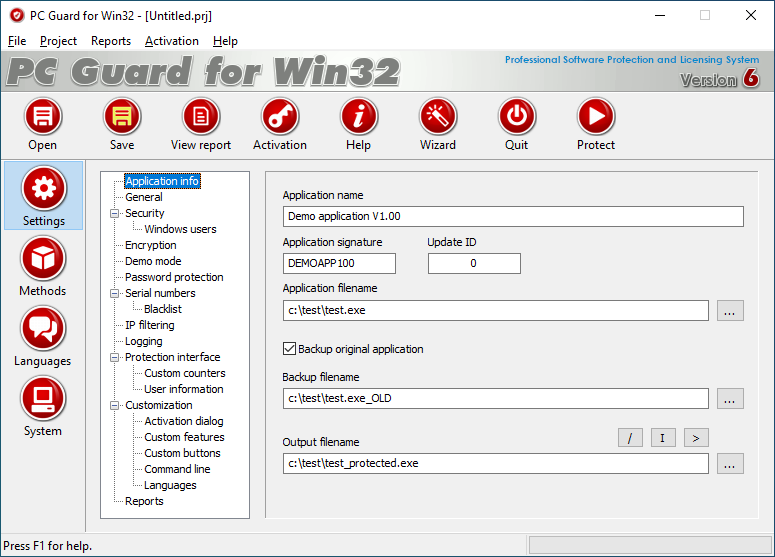
Update the predefined Application name ("Demo application V1.00") and Application signature ("DEMOAPP100") as needed.
Application signature is highly important value so be sure to take time and get familiar with all information related to this value.- Set filenames.
Define the source application path in Application filename (e.g., "c:\test\test.exe") and the output path in Output filename (e.g., "c:\test\test-protected.exe"). You can also use the browse (...) button. - Run the protection.
Click the Protect button and follow the prompts until complete.
Congratulations!
You have successfully created "c:\test\test-protected.exe".
Comparing file sizes in Windows Explorer reveals that the protected application is larger due to embedded licensing and protection code. This protection code will handle all licensing tasks for you!
Let's activate our test application on our computer...
Stage 2: Activation
- Copy interface DLL (iDLL.DLL) to the output directory. You can do this manually or simply click the I button located above the output application field.
- Launch the protected application. You can do this in one of two ways:
- Option A (Recommended): Click the > button directly above the output application field to run it instantly.
- Option B: Minimize PC Guard's window and run the protected application manually from Windows Explorer.
The activation dialog box with the Site Code will show up.
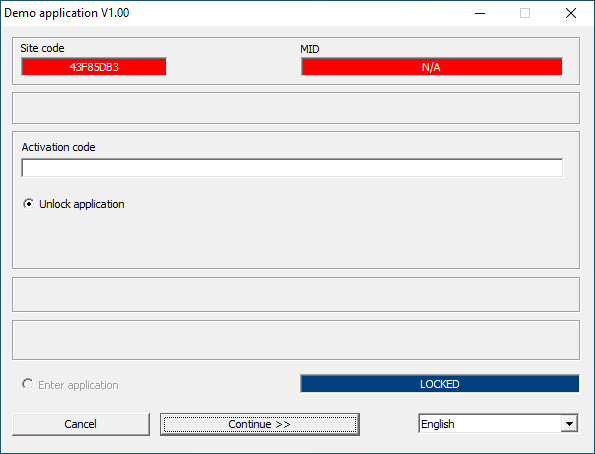
- Mark Site code (in above case 43F85DB3) and copy it (press Ctrl-c).
Switch to PC Guard and press "Activation" button on main toolbar to open Activation panel.
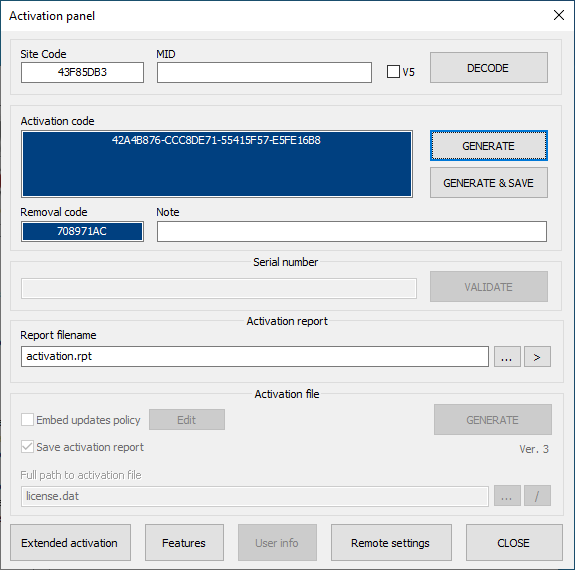
- Paste (press ctrl-v) Site code into appropriate field.
- Click on 'GENERATE' button to generate valid activation code.
- Mark and copy generated activation code.
Switch back to activation dialog box.
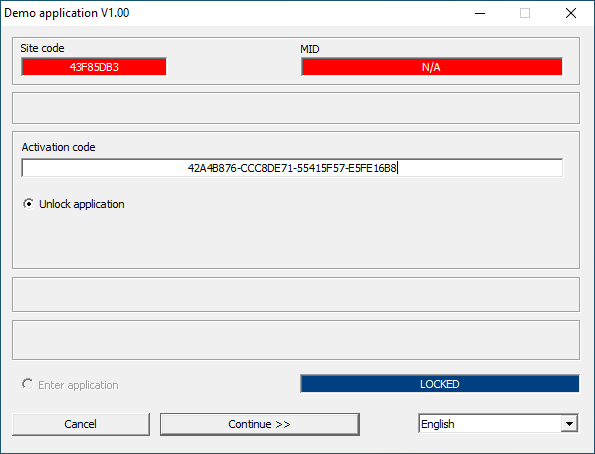
- Paste activation code into appropriate field:
- Press "Continue >>" button to activate protected application.
Notes