Custom buttons can be can be used for any purpose like opening web page, opening a document or running external application.
Custom buttons are available for main activation dialog (4 custom buttons), license removal dialog (2 custom buttons) and license transfer dialog (2 custom buttons).
This is where you can enable and edit custom buttons.
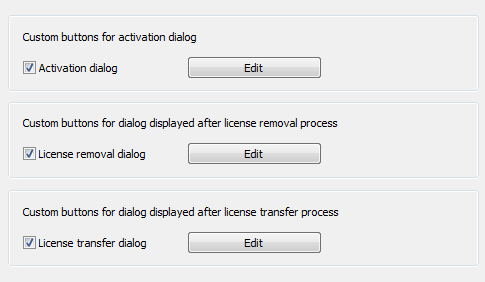
Select appropriate dialog check box to enable custom buttons for that dialog and then click on Edit button to edit custom buttons.
Activation dialog custom buttons
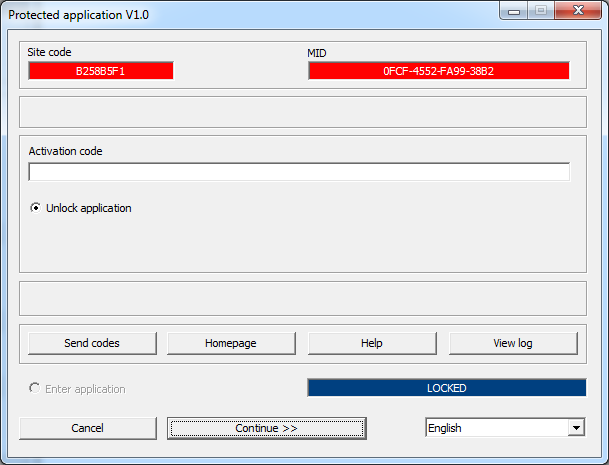
There are four custom buttons you can use on activation dialog box.
In the following screenshot custom buttons are marked as "Send codes" (custom button 1), "Homepage" (custom button 2), "Help" (custom button 3) and "View log" (custom button 4) buttons:
License removal dialog custom buttons
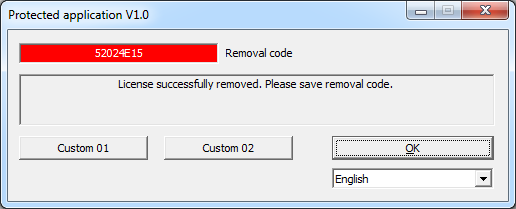
There are two custom buttons you can use on license removal dialog box. This dialog box is displayed by protected application after license is removed by end user.
In the following screenshot of license removal dialog they are marked as "Custom 01" and "Custom 02".
License transfer dialog custom buttons
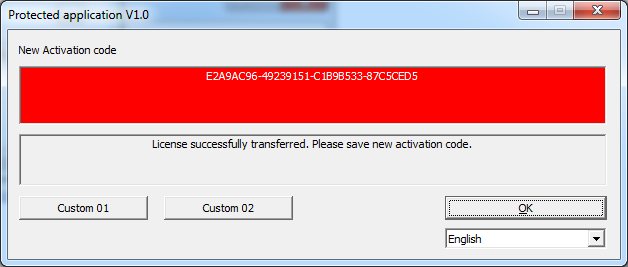
There are two custom buttons you can use on license transfer dialog box. This dialog box is displayed by protected application after license is transferred by end user.
In the following screenshot of license removal dialog they are marked as "Custom 01" and "Custom 02".
Custom buttons editor
This is where custom buttons are edited.
Depending on actual dialog for which custom buttons are edited some buttons may not be available for editing.
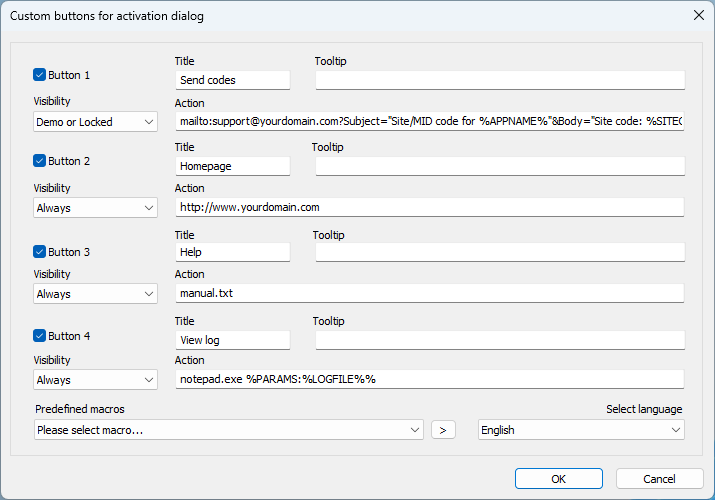
Enabled/Disabled status
Each of these buttons can be enabled or disabled (hidden).
Title
This is the actual button text.
Visibility
This property allows you to control exactly when a custom button appears to the end-user. The button's visibility dynamically changes based on the current licensing and activation state of the protected application. Visibility options for activation dialog are available for remote protection method only. For other protection methods custom buttons are always visible.
You can select one of the following five visibility modes:
- Always (Default): The button is permanently visible. It remains on the screen across all application states, regardless of whether the application is in evaluation mode, locked, or activated.
- Demo: The button is visible only during the evaluation period. It automatically disappears once the trial expires or if the application is locked. This is ideal for features like "Buy Now" or "Extend Trial" prompts.
- Locked: The button appears only when the application is locked. This state occurs after the evaluation period expires, or if the demo mode was never enabled in the project settings. Use this to guide users directly to your registration or support pages when they are blocked from using the software.
- Demo or Locked: The button is displayed during the evaluation period and remains visible after the demo expires while the application is locked. It will only disappear once the application is successfully activated.
- Activated: The button is hidden during the trial and locked phases. It becomes visible only after the end-user successfully activates the application with a valid activation code. This is useful for displaying member-only links, premium support buttons, or advanced tools reserved for paid users.
Tooltip
Each button can have tooltip help note and must have action string which is executed when the button is clicked.
Action
Action string can be a application name (exe) , document name (like .doc, .txt ...) , folder name or http link for example. This will allow your client to open your homepage, help or license agreement file just by clicking on appropriate custom button.
| Action macro | Description |
|---|---|
| %SITECODE% | Site code value (generated on site) |
| %MIDCODE% | Machine ID (MID) value (generated on site) |
| %NEXTSITECODE% | Next site code value (for license extension feature) |
| %NEXTMIDCODE% | Next Machine ID value (for license extension feature) |
| %CSITECODE% | Currently selected Site code. |
| %CMIDCODE% | Currently selected MID code. |
| %REMOVALCODE% | Removal code (this macro is intended for license removal dialog only) |
| %ACENCLIENTID% | Currently set ACEN Client ID |
| %ACENORDERID% | Currently set ACEN Order ID |
| %APPNAME% | Application name |
| %USERNAME% | User name |
| %USERADDRESS% | User address |
| %USERCOMPANY% | User company |
| %USERCUSTOM1% | User custom info 1 |
| %USERCUSTOM2% | User custom info 2 |
| %USERCUSTOM3% | User custom info 3 |
| %SERIALNUMBER% | Serial number value |
| %LANGUAGE% | Selected language name |
| %DATETIME% | Current date and time in DD.MM.YYYY HH:MM format |
| %LOGFILE% | Full path to log file |
| %PARAMS:<command line>% | Pass command line parameters. |
Multilingual support
Different Title and Tooltip text can be defined for buttons for each language defined in language editor. These translations will be valid per project and will be saved when project is saved. If title or tooltip value is not defined, default language settings will be used instead.
Use "Select language" combo box to select language.
Examples
| Button title | Action string |
|---|---|
| Send codes | mailto:support@yourdomain.com?Subject="Site/MID code for %APPNAME%"&Body="Site code: %SITECODE% MID code: %MIDCODE%" |
| Send codes* | mailto:support@yourdomain.com?Subject=Site/MID code for %APPNAME%&Body=Site code: %SITECODE% MID code: %MIDCODE% |
| Homepage | http://www.myhomepage.com |
| Help | help.txt |
| License | license.txt |
| Activate | activate.exe %PARAMS:%SITECODE% %MIDCODE%% |
| View log | notepad.exe %PARAMS:%LOGFILE%% |
* Some email clients like Microsoft Outlook do not like if parameters are passed in quotes.