In order to access licenses in Standard licensing, you must first select a client and an appropriate order, or jump directly to a specific order by providing its Order ID value.
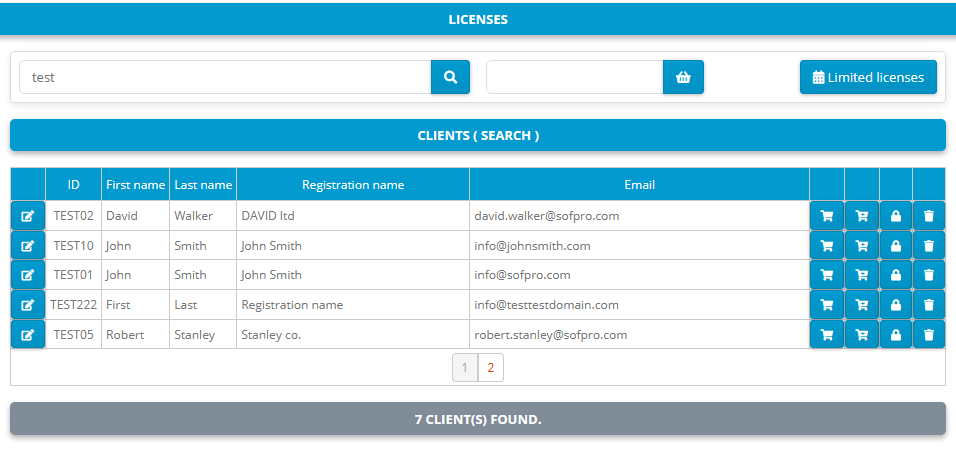
Searching Clients & Orders
- Search all clients: Searches across First name, Last name, Registration name, Email, and Custom client data fields.
- Direct Order access: Jump directly to an order by entering a valid Order ID value.
- Limited licenses shortcut: Click the Limited licenses button to open the limited licenses panel directly.
Clients Table Actions
View all orders associated with the selected client.
Add a new order for the client.
Lock or unlock the client in the database (locked clients cannot log in to the Activation Center client panel).
Delete the client from the database (a confirmation prompt is displayed before deletion).
View full client details.
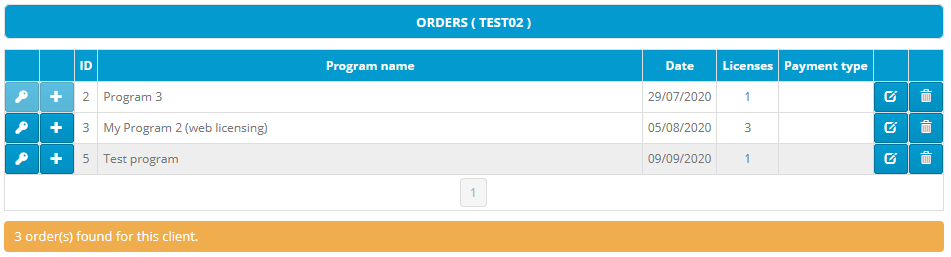
Orders Table Actions
Delete the Order from the database (a confirmation prompt is displayed before deletion).
View Order details and licensing settings.
List all licenses assigned to the selected Order.
Add (manually generate) a new license for the selected Order.